
Live Hub AI Agent
Live Hub connects to an agent you have built in AI Agents, its own native agent platform.
An AI agent uses the AudioCodes Bot API just like any other bot othat uses that framework. As a result, all functionality documented for the API also applies to AI agents, including transfer, recording, and background audio events.
You rarely need this procedure. Enabling speech and telephony on the agent itself creates its bot connection for you, named after the agent and already carrying its speech settings. See AI Agents. Use this procedure only if you are creating the connection by hand.
Define the agent first. The 'Agent' drop-down list offers only agents that already exist.
To create a bot connection to an AI agent:
-
In the Navigation pane, select Bot connections, and then click Add new voice bot connection or Add new assist bot connection.
An assist bot follows a live agent's conversation rather than answering the call itself. See Assist bots.
-
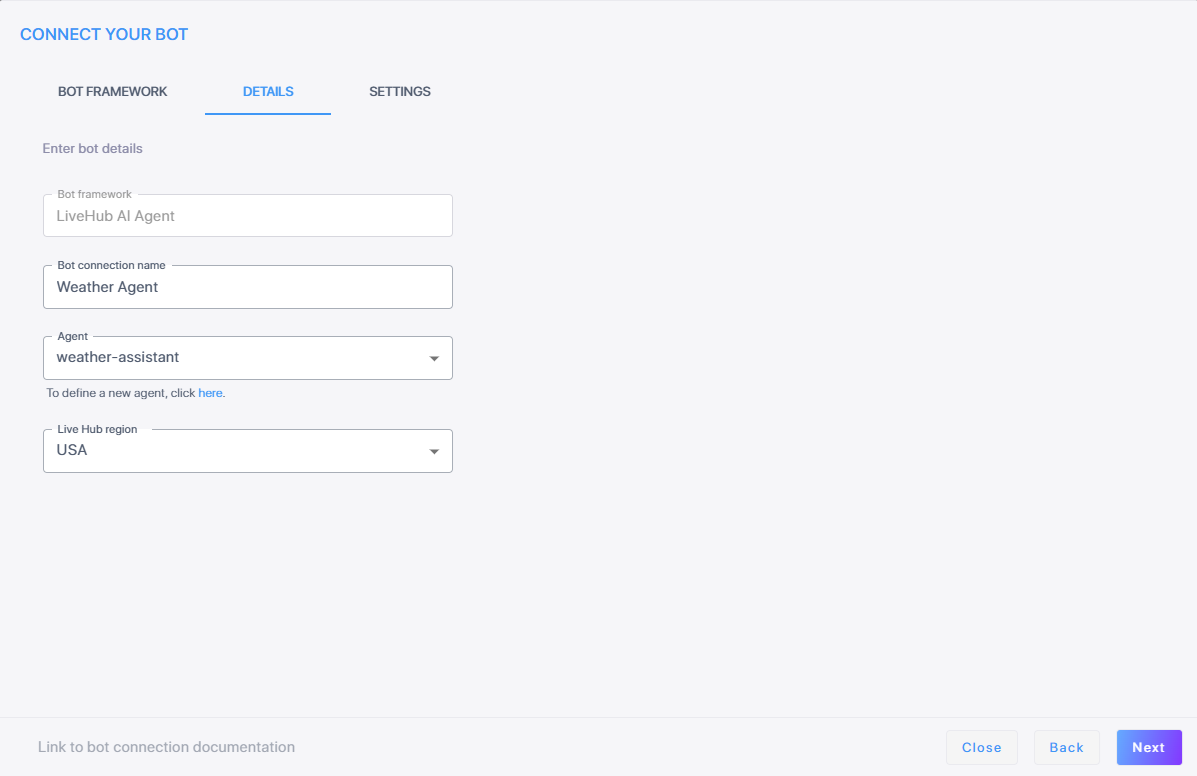
Select LiveHub AI Agent, and then click Next.
-
In the 'Bot connection name' field, enter a name for the bot connection.
-
From the 'Agent' drop-down list, select your agent.
-
From the 'Live Hub region' drop-down list, select the region your Live Hub voice infrastructure runs in. See Global region support.
-
Click Next.
-
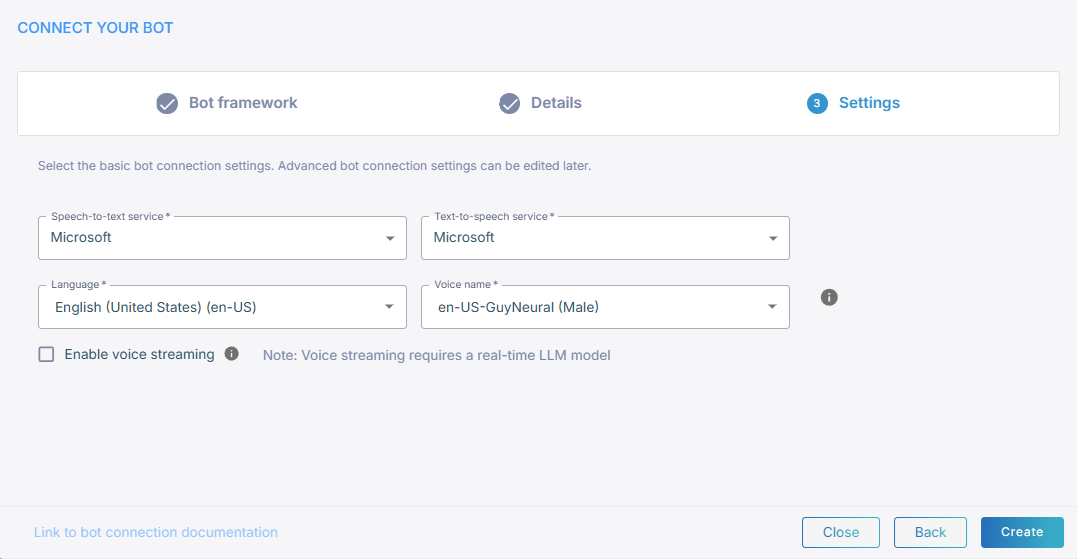
To have Live Hub stream voice directly between the agent and the caller instead of exchanging text, select the 'Enable voice streaming' check box.
With voice streaming on, the speech-to-text and text-to-speech fields disappear, since the agent receives and returns audio itself. It needs a speech-to-speech model. See Models.
-
Otherwise, select a speech-to-text service and a text-to-speech service.
-
Click Create.